Canvas Workspace
The Canvas workspace is the inspection surface for committed structured state. It is useful after you have source material, reviewed state, and at least one commit. It is not the first step for most users; Chat produces reviewed commits, then Canvas helps users inspect and reuse them.
1. Version path
Canvas shows the committed structured-state versions as a branch graph. Each node is a commit that can be inspected, compared, merged, or reused as a Leaf source.
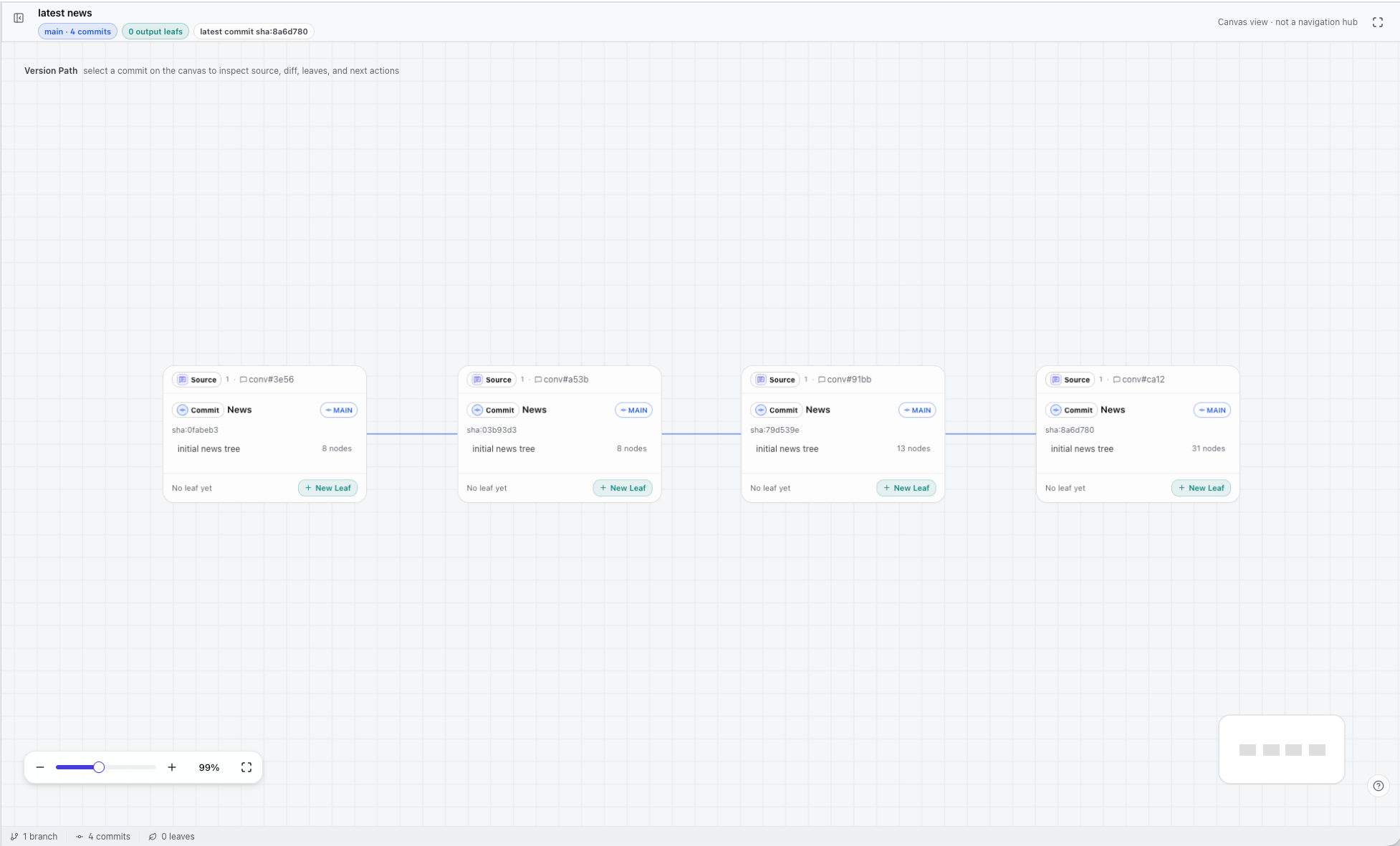
What to look for:
- Branch chips summarize the active branches, commit count, and leaf count.
- Commit cards show the commit message, branch, short hash, and state tree size.
- Version edges show how one committed structured state leads to another.
- Leaf affordances make output creation visible from the version that owns that state.
2. Commit audit
Open a commit when you need to read the exact committed structured state. The audit page keeps the tree index, YAML view, structural graph, JSON, relations, hash chain, and leaf links together.
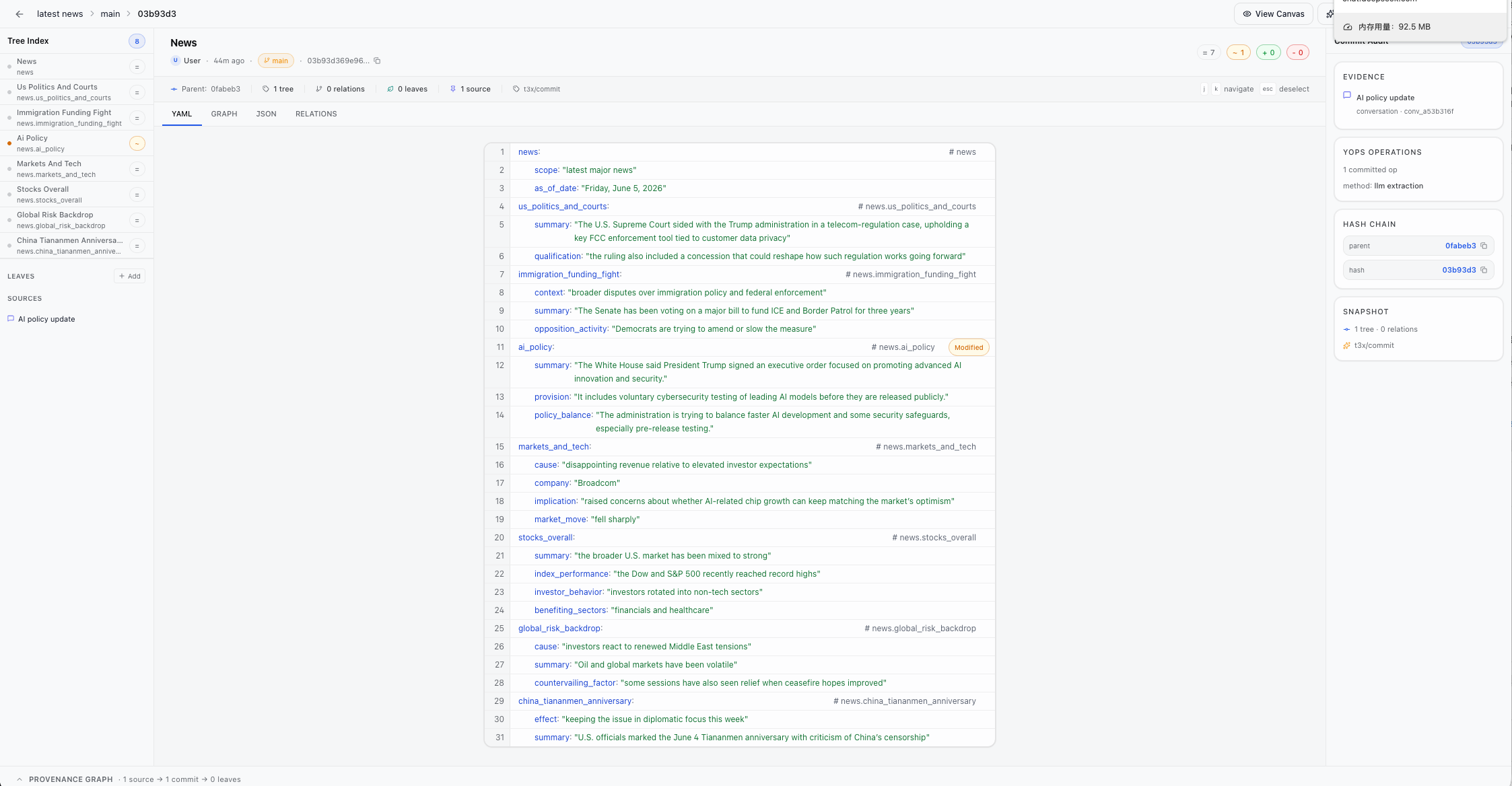
What to look for:
- Tree index on the left shows modified, added, and unchanged state nodes.
- YAML view is the human-readable committed tree, not raw chat text.
- Audit rail shows evidence, YOps operation count, hash chain, and snapshot metadata.
- Top actions let users return to Canvas, view a diff, share, or export.
3. Structured diff
Diff compares two structured-state commits. It answers "what state changed?" rather than only showing token-level changes in a transcript.
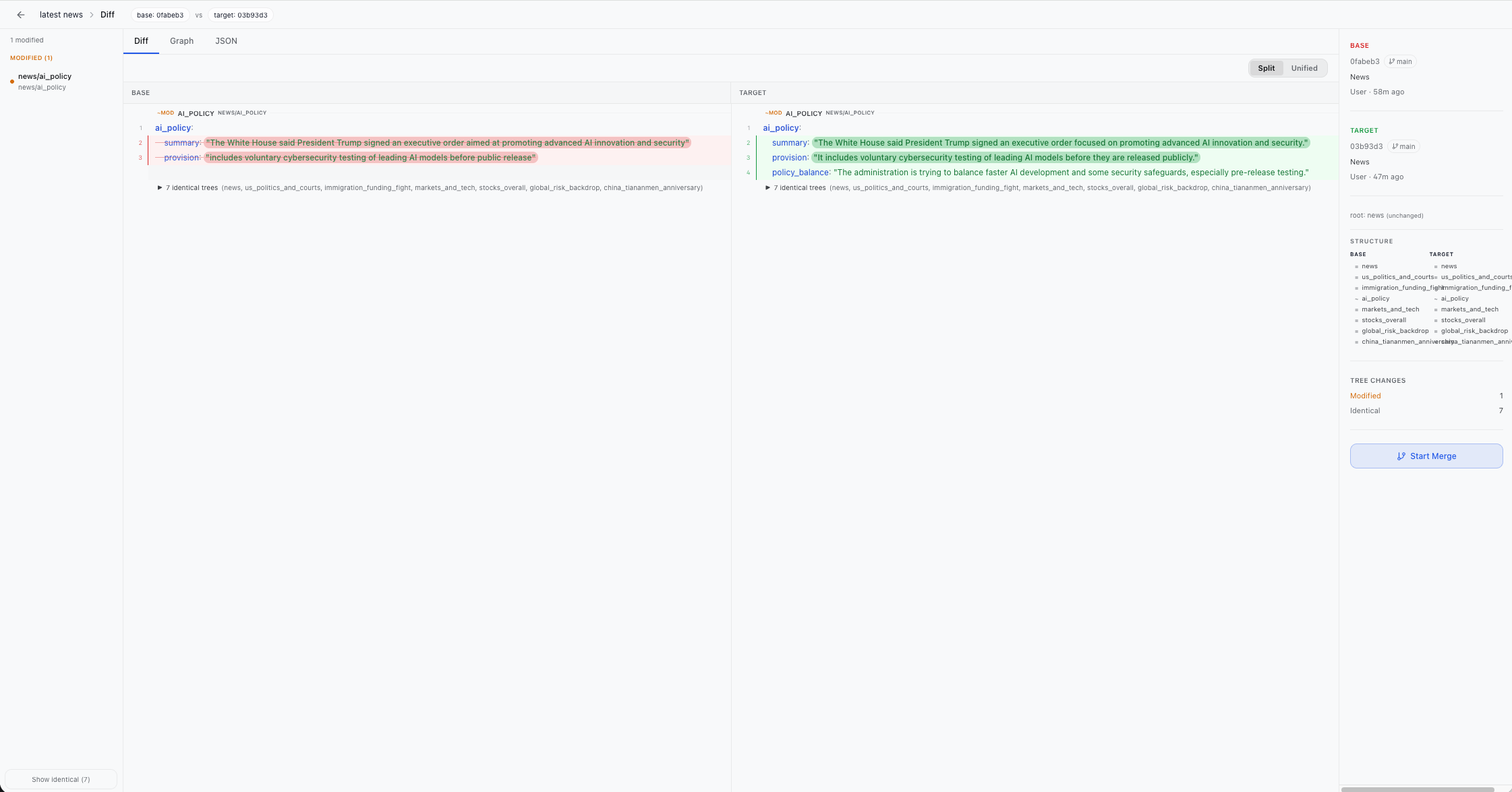
What to look for:
- Base and target hashes are fixed in the header and right rail.
- Tree index groups modified, added, removed, and identical nodes.
- Split YAML shows old state on the left and new state on the right.
- Inline highlights make changed slot values visible without reading the full tree.
- Start Merge creates a merge workspace from the same pair of commits.
4. Merge workspace
Merge is the review surface for two branches of structured state. It separates conflicts from auto-kept state and from content that exists only on one side.
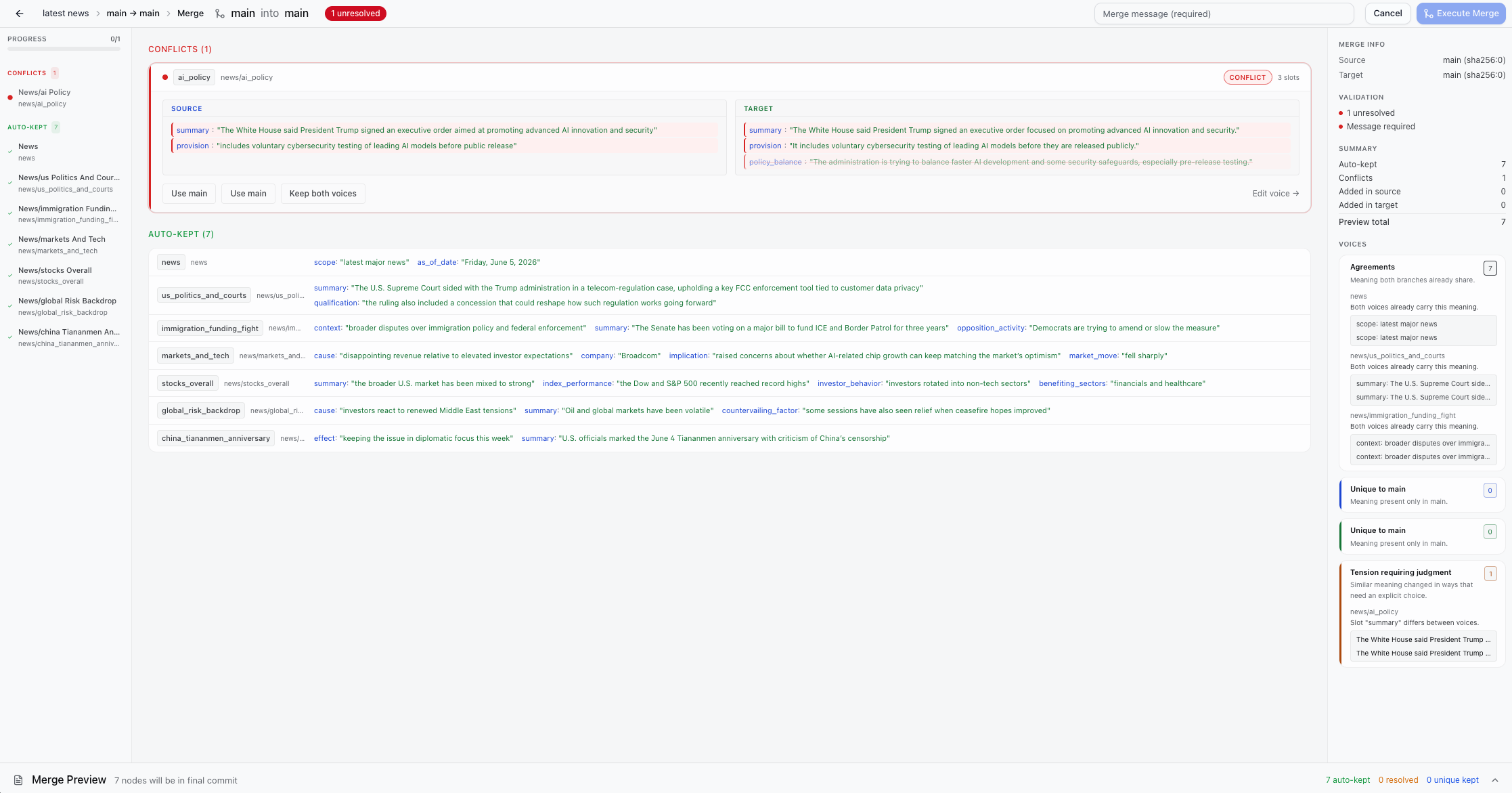
What to look for:
- Conflict cards place source and target slots side by side.
- Resolution buttons let users keep source, keep target, or keep both voices.
- Auto-kept nodes show state that both branches already share.
- Source-only and target-only nodes make branch-specific state explicit.
- Merge info and voices summarize what will enter the final merge commit.
5. Leaf output
Leaves are reusable artifacts generated from a commit. They keep constraints and assertions next to the output so the user can see whether the artifact preserved the committed structured state.
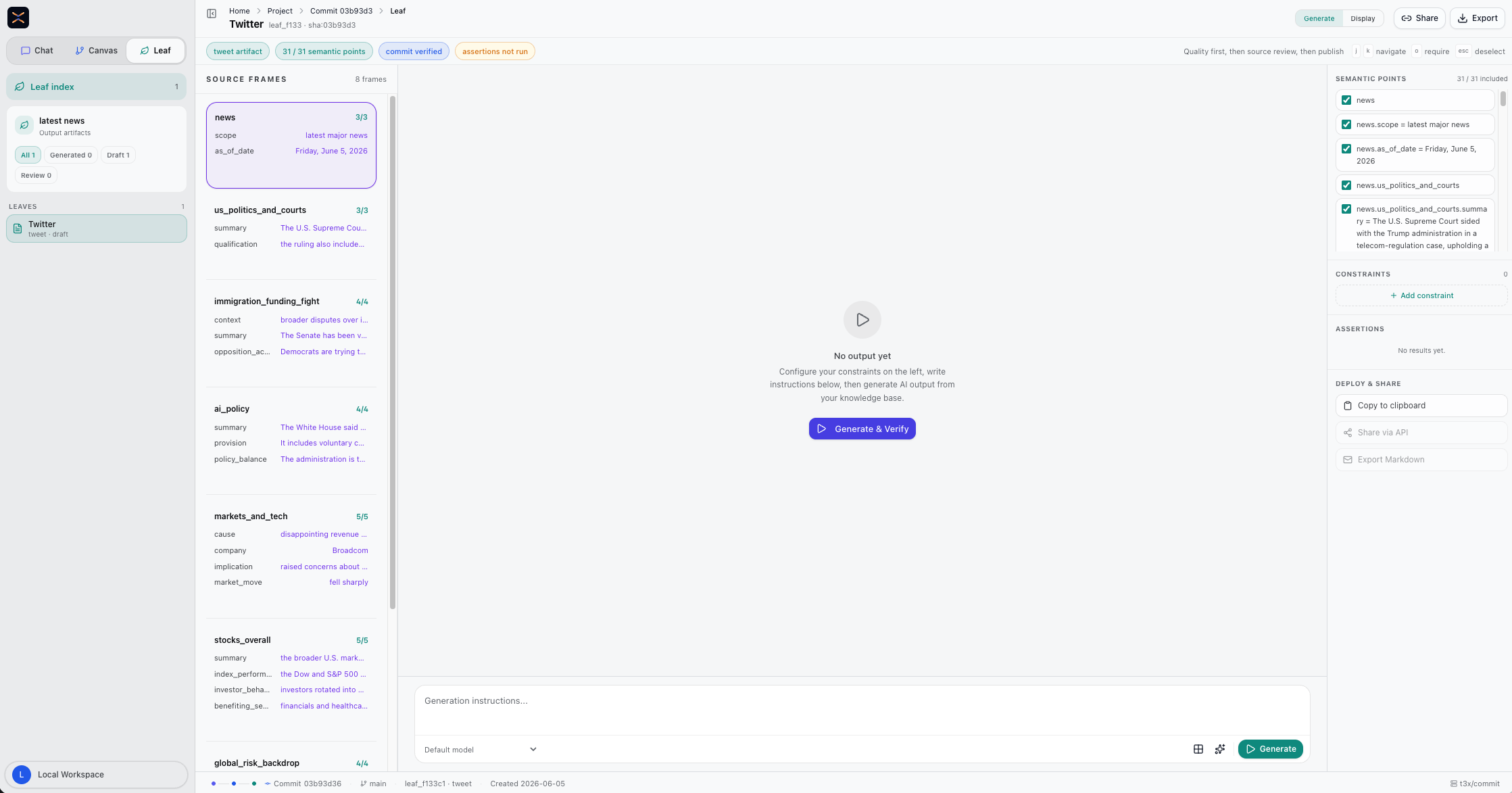
What to look for:
- Source frames on the left show the structured state available to the output.
- Output in the center is the generated artifact.
- Review stack on the right shows state coverage, constraints, and assertion results.
- Commit verified and assertion badges make the output's state visible without reading every line.
When to use Canvas
Use Canvas after a commit exists and the user needs to inspect, compare, or reuse that version. Use Chat when the user is still adding source material or reviewing pending extraction.