WebUI Overview
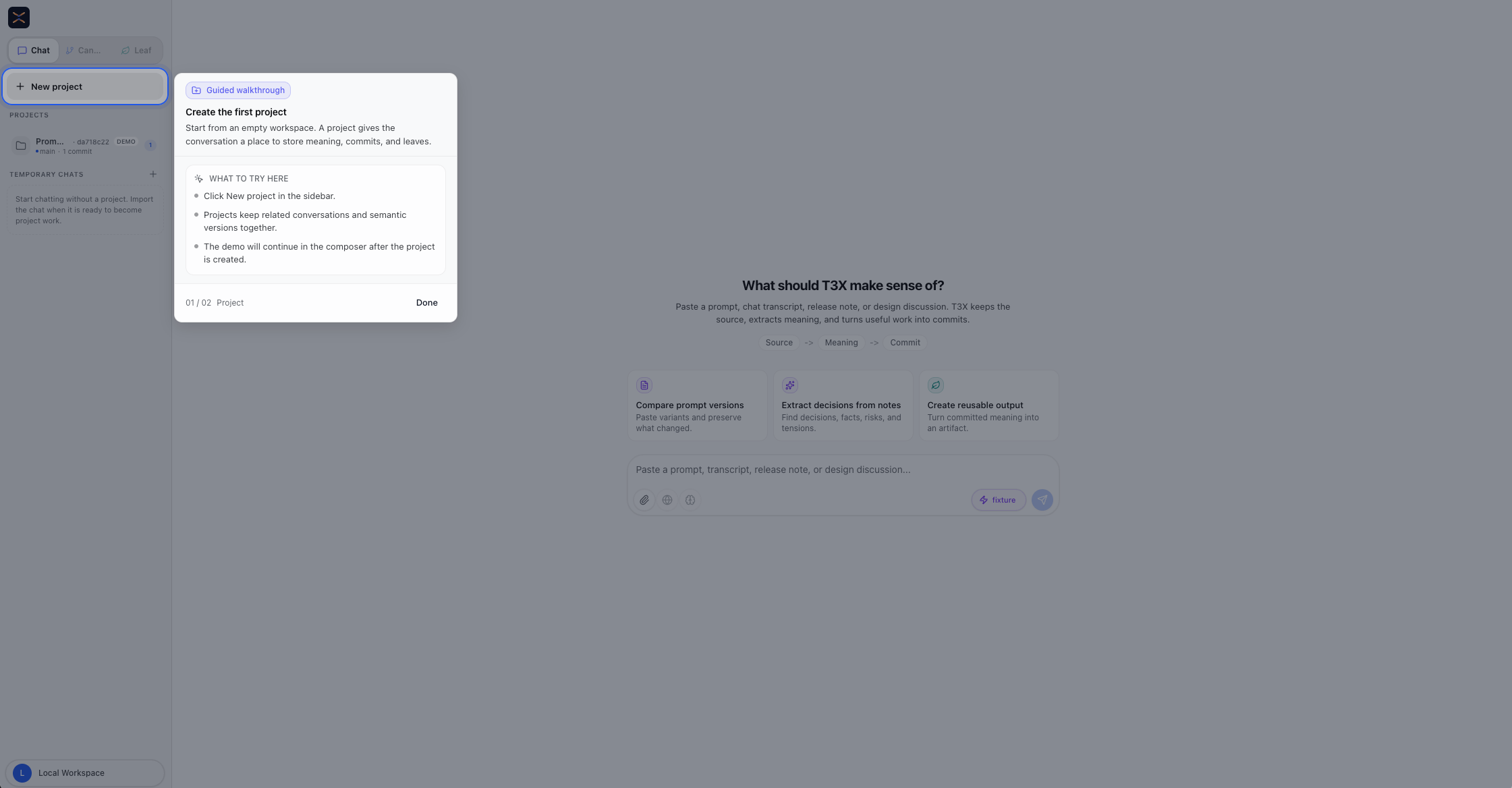
The WebUI is the T3X workbench. It starts like a chat surface, but the value is what happens after the first reply: source becomes YOps, YOps become a reviewed tree, the tree becomes a commit, and commits become reusable output artifacts.
Core site: www.t3x.dev.
pnpm dev:api
pnpm dev:webui
Open the WebUI URL printed by pnpm dev:webui, then go to /chat.
Core Workflow
| Step | User sees | Value |
|---|---|---|
| Chat | A lightweight place to paste a prompt, transcript, release note, or design discussion | Keeps the original source text instead of losing it in a generated answer |
| Workspace | A right-side YOps editor and output panel | Makes extraction reviewable before project state changes |
| YOps Review | Pending YAML operations, dry-run output, and applied tree | Lets users inspect and materialize what the LLM proposed before state is saved |
| Commit | Commit action and review checkpoint | Turns reviewed state into a stable project version |
| Canvas | Version graph with commit cards, branches, leaves, and pending work | Shows where state lives across project history |
| Leaf | Source-backed output artifact with constraints and assertions | Turns committed state into reusable work: checklist, article, prompt, eval, agent config |
1. Chat: Start From Source
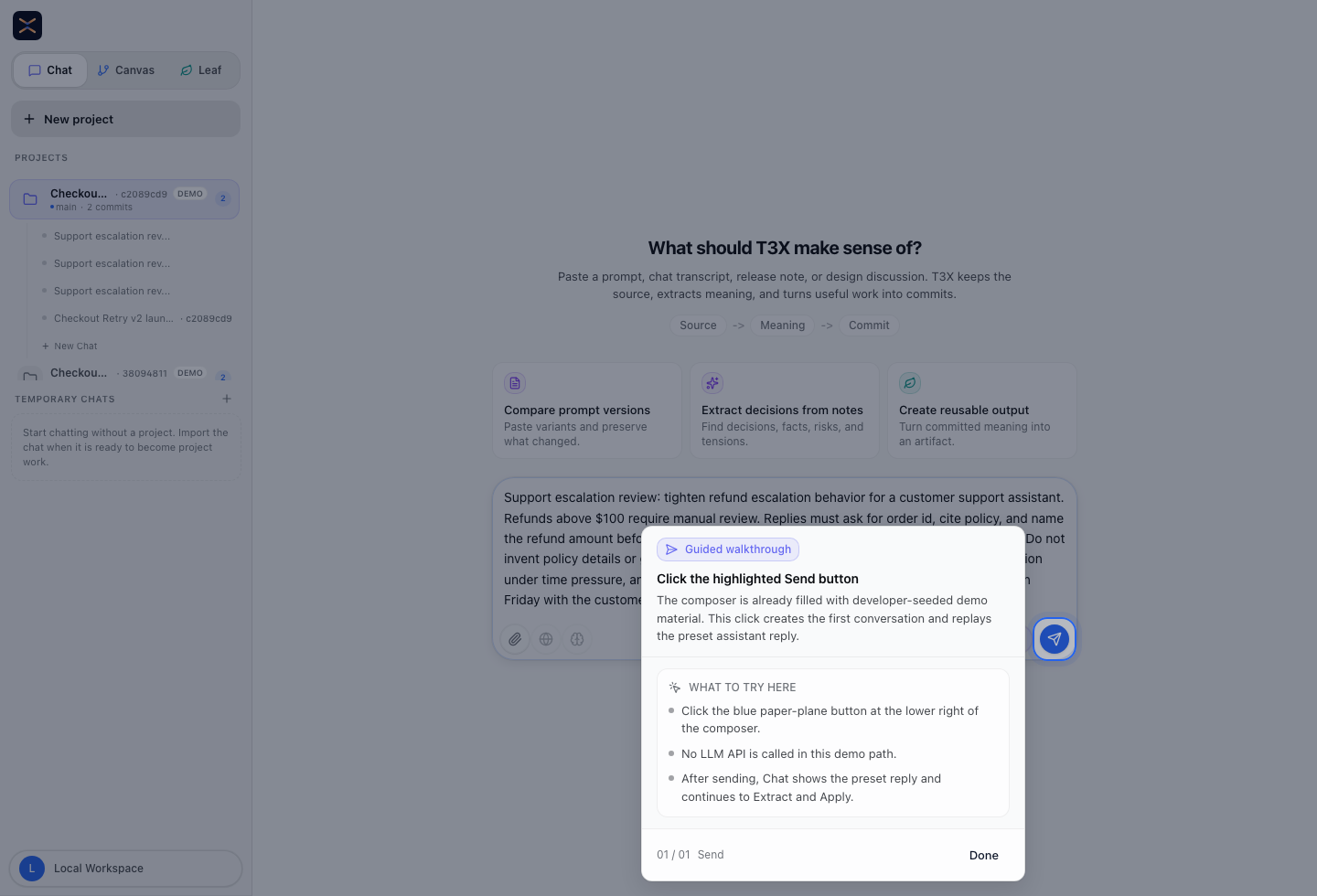
Chat is intentionally low-friction. Users paste the material they want T3X to structure. The source may be a prompt version, support note, meeting note, release plan, design discussion, or agent trace.
Value produced:
- Keeps the original source available.
- Creates the first conversation context.
- Gives users a natural path into extraction instead of asking them to model a tree by hand.
2. Workspace: Review The Mutation
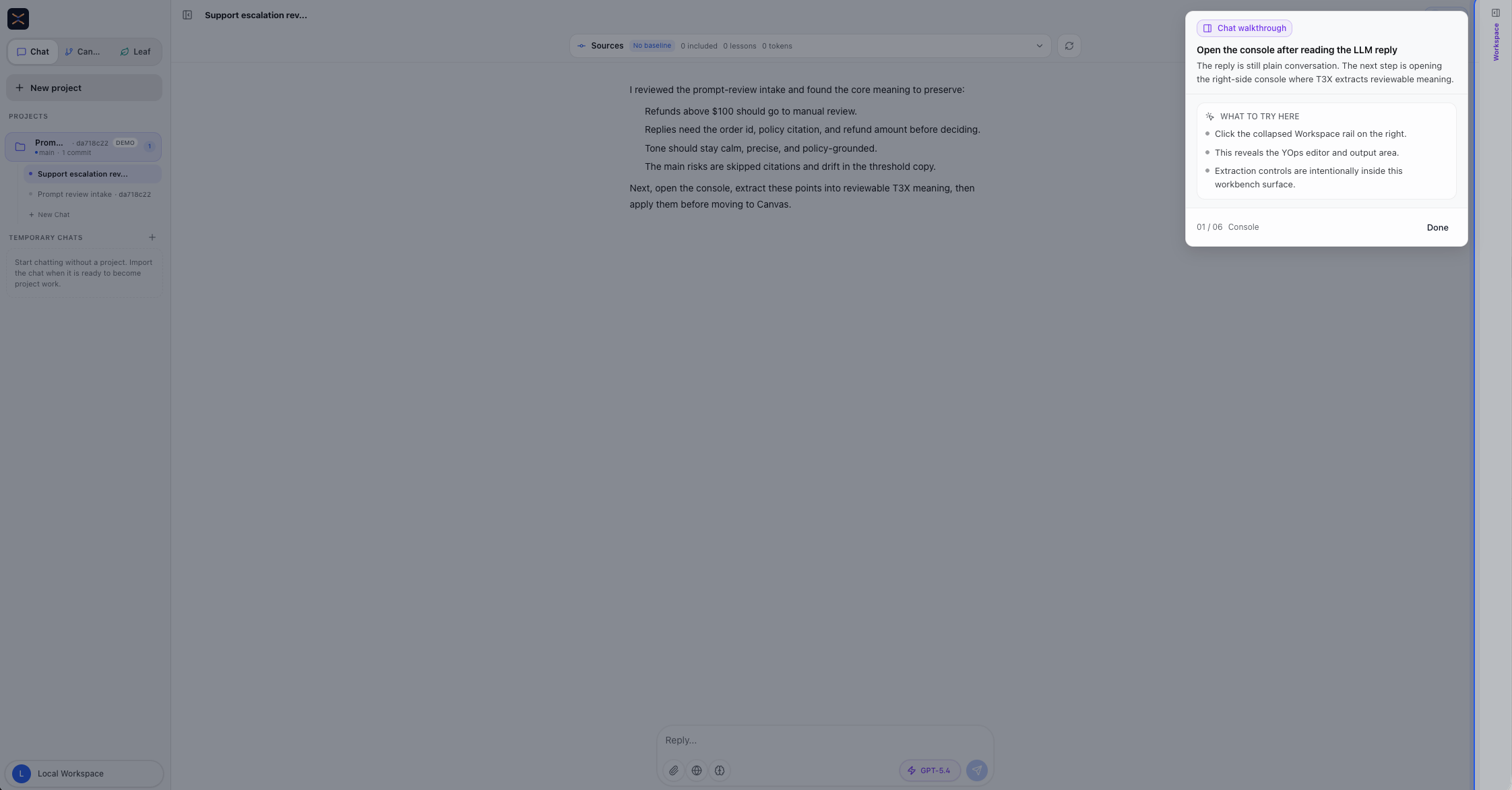
Workspace is the precision surface. The left side remains conversational; the right side shows the mutation machinery.
Value produced:
- Separates natural-language discussion from structured state.
- Keeps the YOps proposal visible.
- Gives the user a place to apply, discard, continue editing, or commit.
3. YOps Review: See And Apply The Proposal
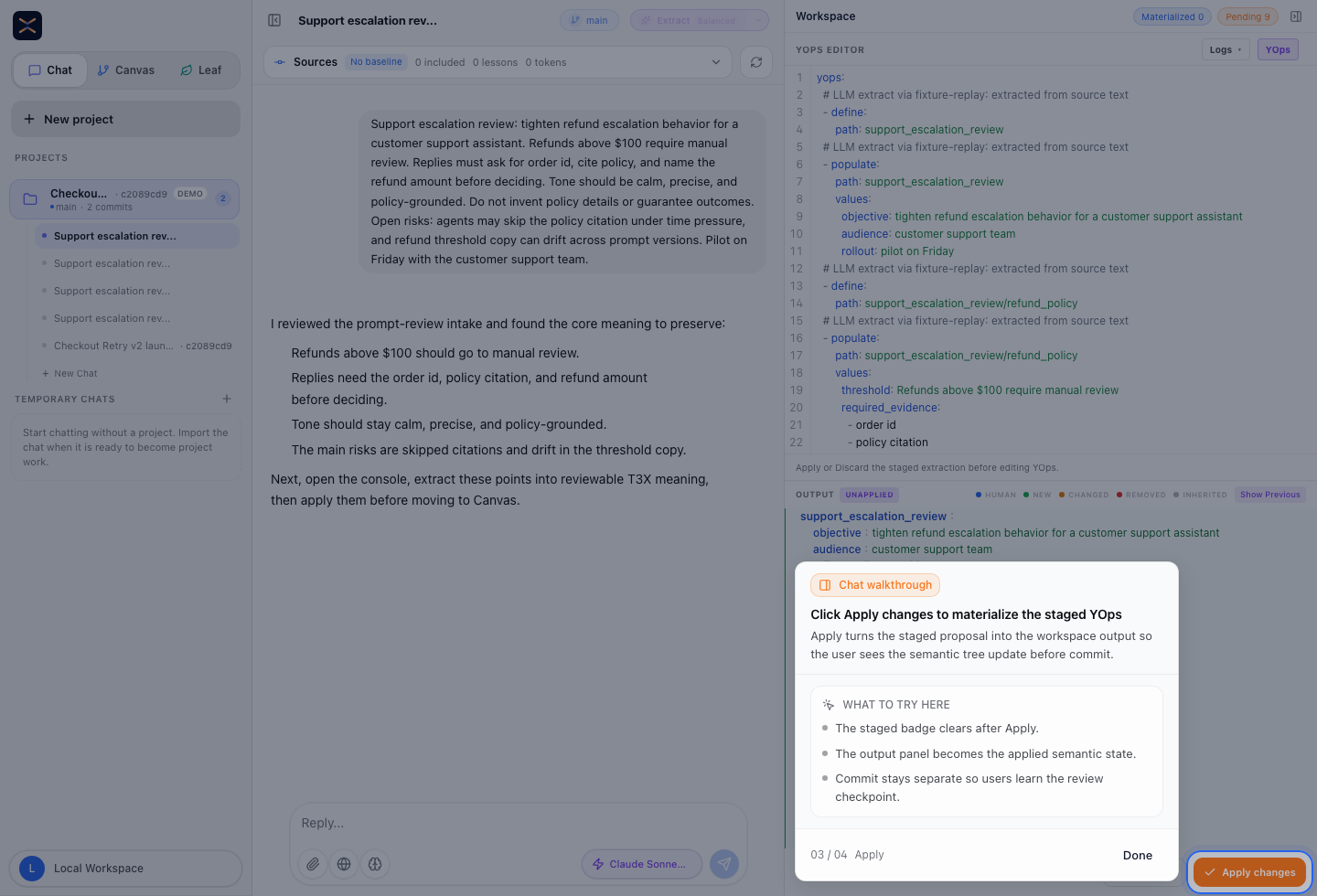
After Extract, T3X shows a pending proposal. This is where the user should ask: "Is this what we want the project to remember?" The user can inspect the YAML, compare it with the dry-run output, edit or discard the proposal, and only then apply it.
Apply runs the deterministic engine. Operations are applied, pending count drops, source-backed rows are preserved, and the output tree becomes ready for commit.
Value produced:
- Prevents silent mutation by model output.
- Shows the exact YAML operations and dry-run tree.
- Materializes reviewed state without relying on another model call.
4. Commit: Save Reviewed State
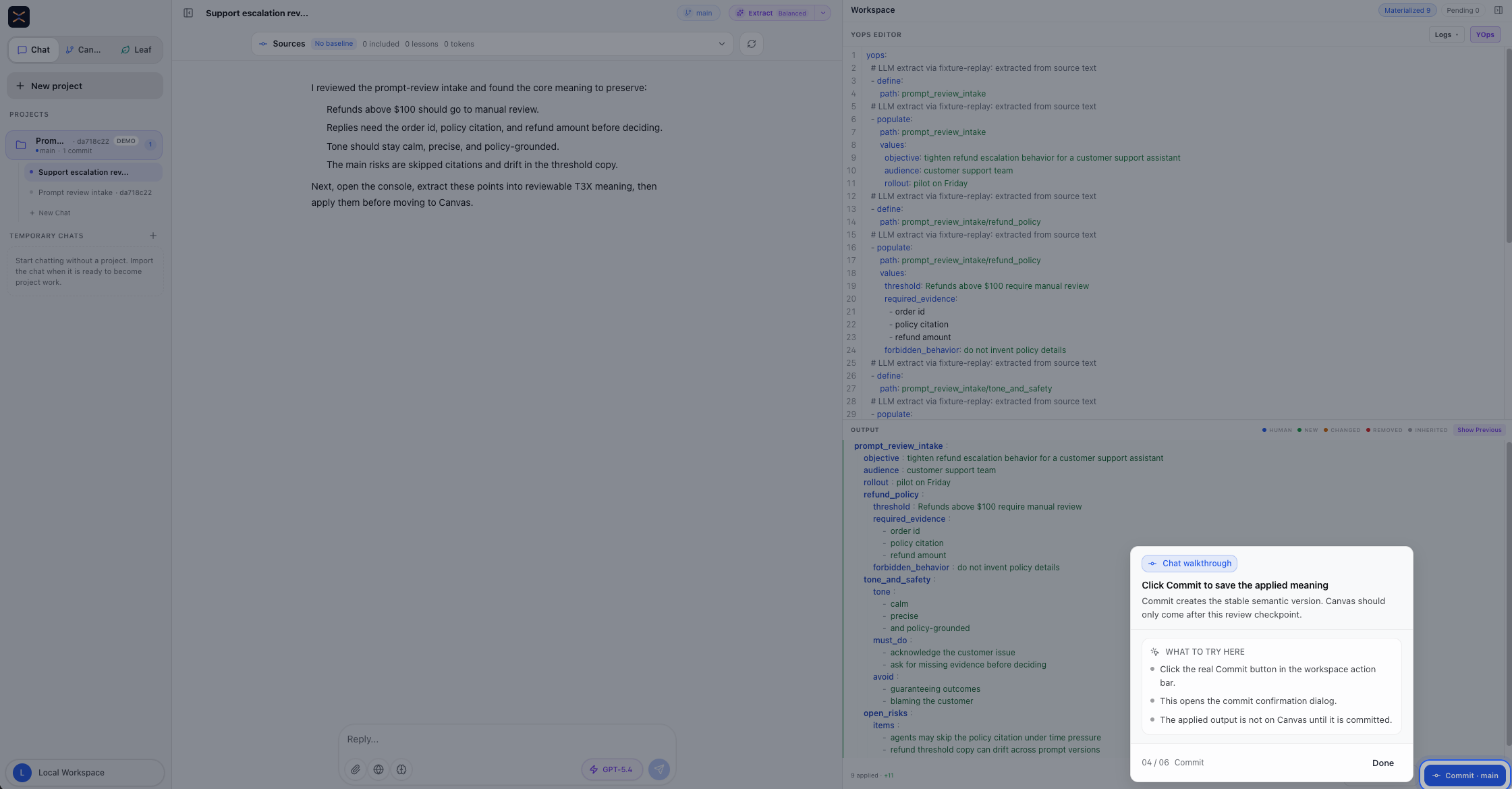
Commit is the review checkpoint. It takes the applied output tree and saves it as a stable project version. Canvas should come after this step: before commit, the user is still reviewing proposed state; after commit, the project has a versioned state that leaves and future diffs can reference.
Value produced:
- Turns reviewed state into a durable commit.
- Preserves the source note, YOps operation log, and materialized tree together.
- Gives Canvas and Leaf a stable version to inspect, compare, and reuse.
5. Canvas: Inspect Structured Versions
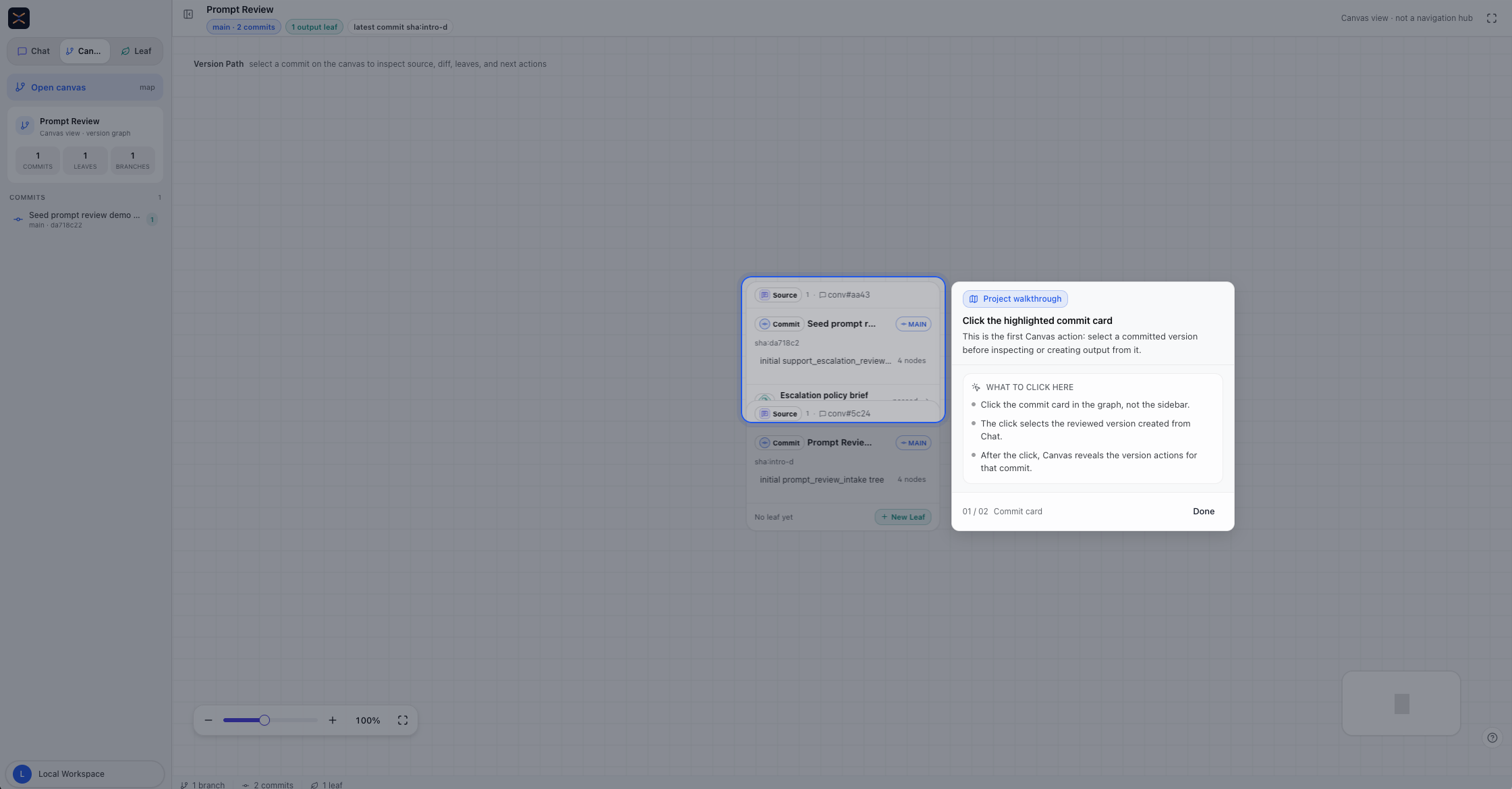
Canvas is not a decorative graph. It is the project version path: commits, branches, leaves, and pending work.
Value produced:
- Makes structured history visible.
- Shows which output leaves came from which commit.
- Helps users inspect source, diff, leaves, and next actions from a selected version.
6. Leaf: Turn Commits Into Output
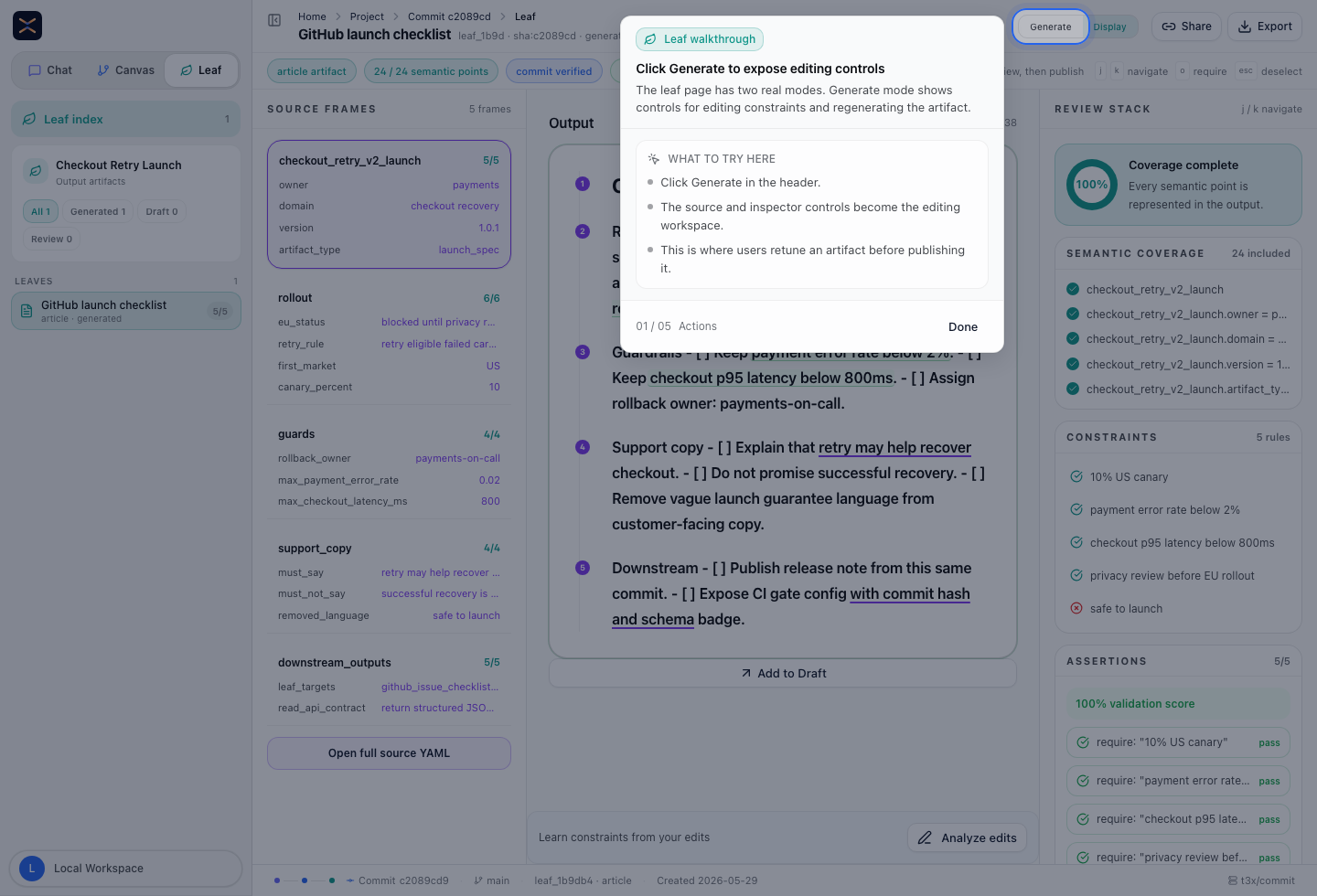
Leaf is where committed state becomes a reusable artifact. A leaf has its own constraints, generated output, source coverage, quality checks, and export actions.
Value produced:
- Keeps output tied to a commit hash.
- Shows which committed state points were included.
- Tracks assertions and constraints separately from the commit itself.
- Lets users retune output without mutating the underlying commit.
Screenshot Checklist
These are the screenshots captured for the current WebUI docs pass.
| File | Use |
|---|---|
webui-chat-empty-walkthrough.png | Default Chat landing with guided walkthrough |
chat-light.png | Default Chat landing |
chat-dark.png | Dark-mode Chat landing |
chat-mobile.png | Mobile Chat landing |
webui-01-intro-project.png | Guided demo project creation hint |
webui-02-new-project-dialog.png | New project dialog |
webui-03-demo-composer.png | Prefilled demo source in composer |
webui-04-chat-replay.png | Chat reply before extraction |
webui-workspace-console-walkthrough.png | Workspace console walkthrough |
webui-05-yops-workspace-empty.png | Workspace before extraction |
webui-06-yops-staged.png | Pending YOps proposal |
webui-commit-walkthrough.png | Commit review checkpoint |
webui-08-canvas.png | Canvas guided entry |
webui-canvas-commit-card-walkthrough.png | Canvas commit card walkthrough |
webui-09-canvas-selected.png | Selected commit card |
webui-10-canvas-controls.png | Canvas zoom/control state |
webui-11-leaf-index.png | Leaf index |
webui-12-leaf-detail.png | Leaf output display |
webui-13-leaf-generate.png | Leaf generate/edit mode |
webui-leaf-workspace-index.png | Leaf Workspace artifact index |
webui-leaf-workspace-display.png | Leaf Workspace display and review stack |
webui-leaf-workspace-generate.png | Leaf Workspace generation mode |
The workflow screenshots are captured from the local guided demo path
(/chat?introDemo=1) after starting the API and WebUI:
pnpm dev:api
pnpm dev:webui
The stable landing-only set is regenerated with:
pnpm screenshots:demo